
Back to Teacher Guide
Workshop 2 5 minutes
Viewing Quiz Results
Once students complete a quiz, you can see their results. SudoStudy automatically marks Multiple Choice Questions and uses AI to mark Long Answer Questions.
Quick Links
Finding Quiz Results
There are two places where you can view quiz results:
1
From My Quizzes
- Go to My Quizzes in your subject dashboard
- Find the quiz you want to check
- Click on the View Details button
- View the Student Results section showing who has completed
2
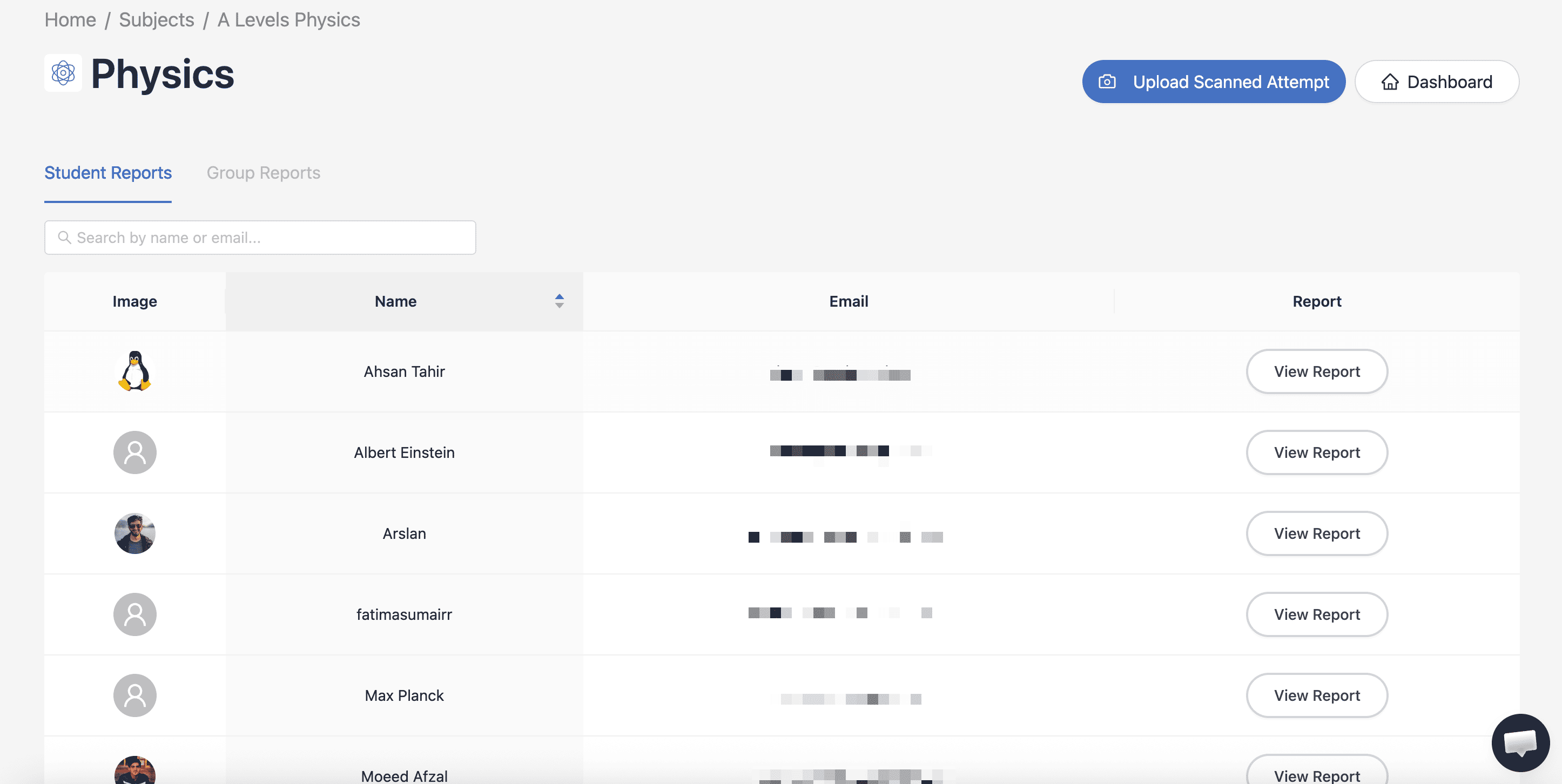
From Student Reports
- Go to Student Reports in your subject dashboard
- Find the student whose results you want to see
- Click View Report to see all their quiz attempts
Preview
Understanding the Results
For each student attempt, you'll see:
Overall Score
Total marks obtained out of maximum possible.Time Taken
How long the student took to complete.Questions Attempted
Number answered vs total questions.Completion Date
When the student submitted.How Different Question Types Are Graded
Multiple Choice Questions (MCQs)
- Marked automatically and straight away
- 1 mark for each correct answer
- You can see the results as soon as the student finishes
Long Answer Questions
- Marked using AI technology
- Uses the same marking scheme as real exams
- Gives marks for showing working, getting the right answer, and including key points
Sending Result Emails
You can send quiz results to students and their parents by email.
Send to Students
- Go to the quiz results page
- Click "Send Results to Students"
- Each student will get an email with their score
Send to Parents
- Go to the quiz results page
- Click "Send Results to Parents"
- Parents who have an email on file will receive the results