
Back to Teacher Guide
Workshop 1 10-15 minutes
Creating & Assigning Quizzes
This guide walks you through creating a quiz on SudoStudy and getting it into your students' hands. You'll search for questions, build your quiz, and then share it with your class.
Before You Begin
You need a SudoStudy teacher account (your school administrator should have set this up for you)
You need at least one subject assigned to your account
Part 1: Creating Your Quiz
Build a custom quiz from our question bank1
Navigate to Your Subject
- Log in to SudoStudy at sudostudy.com
- After login, you will land on the Subjects page
- Select the subject you want to create a quiz for (e.g., "Mathematics", "Physics")
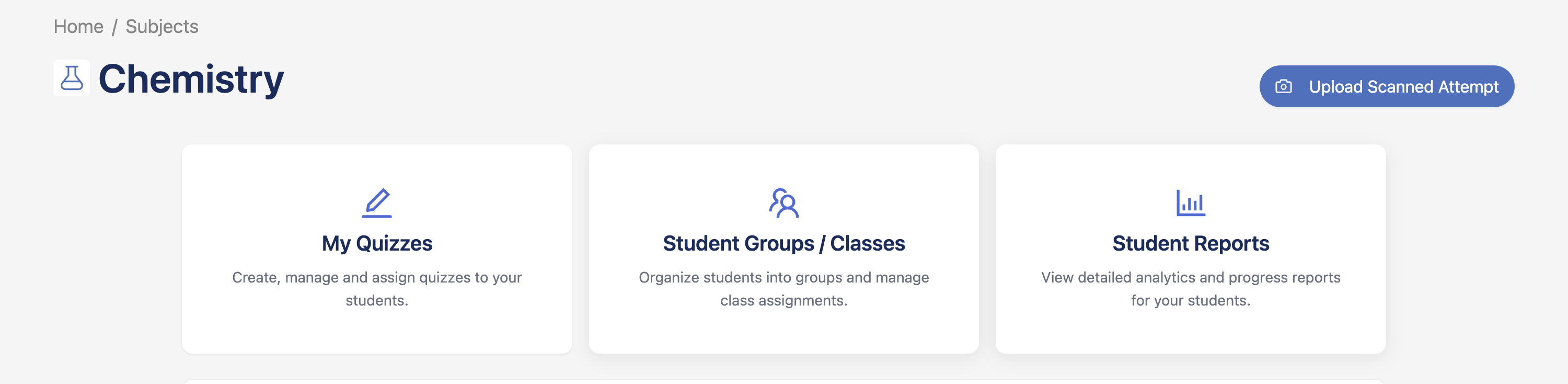
You'll now see your Teacher Dashboard with three action cards.
Preview
2
Go to My Quizzes
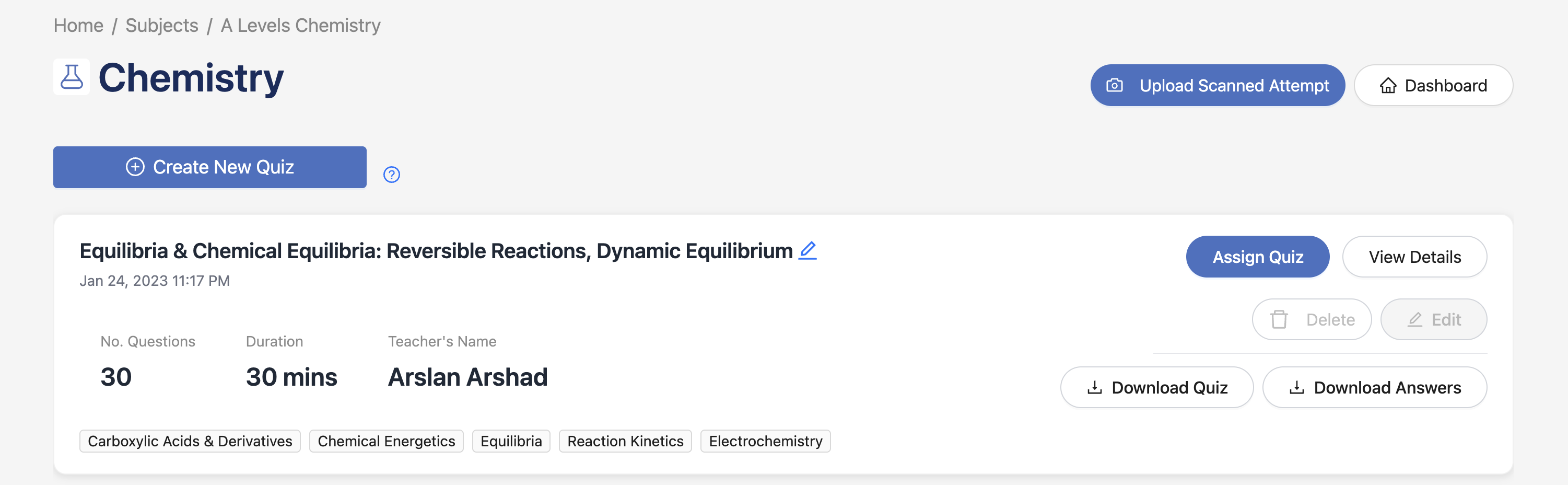
- Click on the "My Quizzes" card
- Click the "Create New Quiz" button (blue button at the top)
Preview
3
Select Questions for Your Quiz
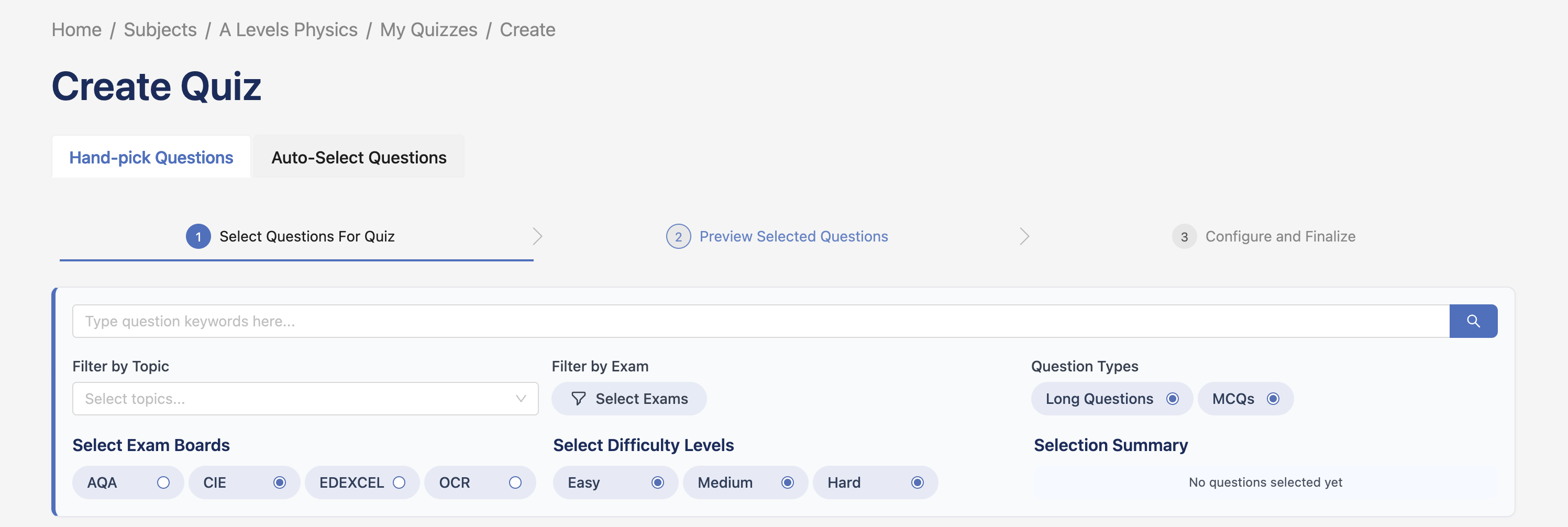
Use the search and filters to find questions, then click "Add" to include them in your quiz.
- Type keywords in the search box to find questions by their text
- Use filters to narrow down by topic, difficulty, or exam board
- Click the "Add" button in the top right corner of a question to add it to your quiz
- Once added, a button appears to select which parts to include (all parts are included by default)
- To remove a question, click the "Add" button again to deselect it
Preview
4
Preview and Reorder Questions
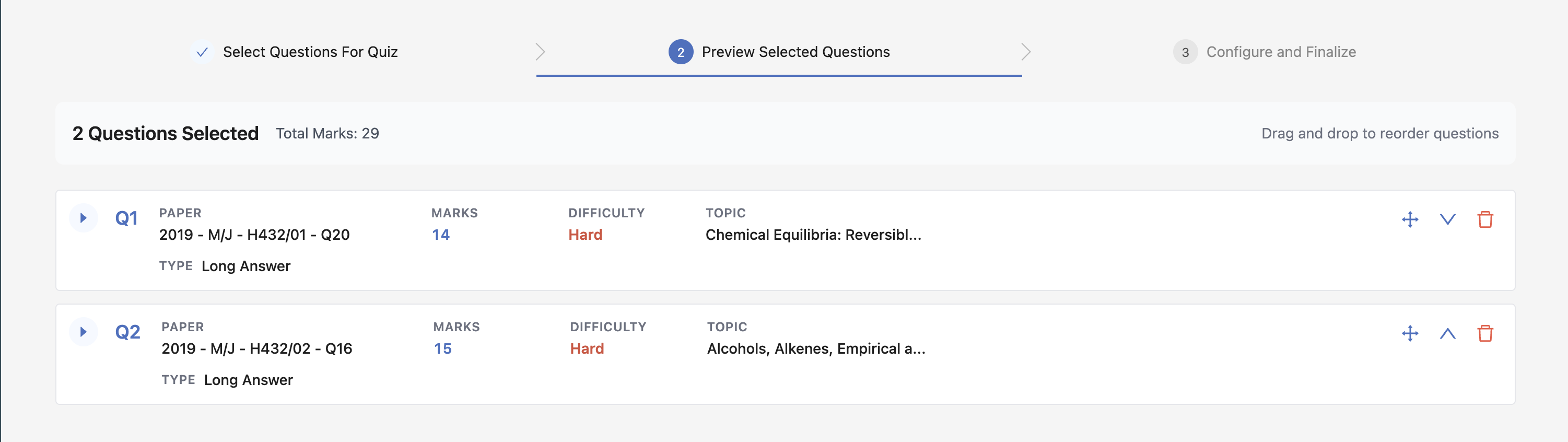
Click "Preview Selected Questions" (the second step at the top) to see all your questions in order. You can drag questions to reorder them.
- Review all selected questions
- Drag questions up or down to change the order
- Remove any questions you don't want
Preview
5
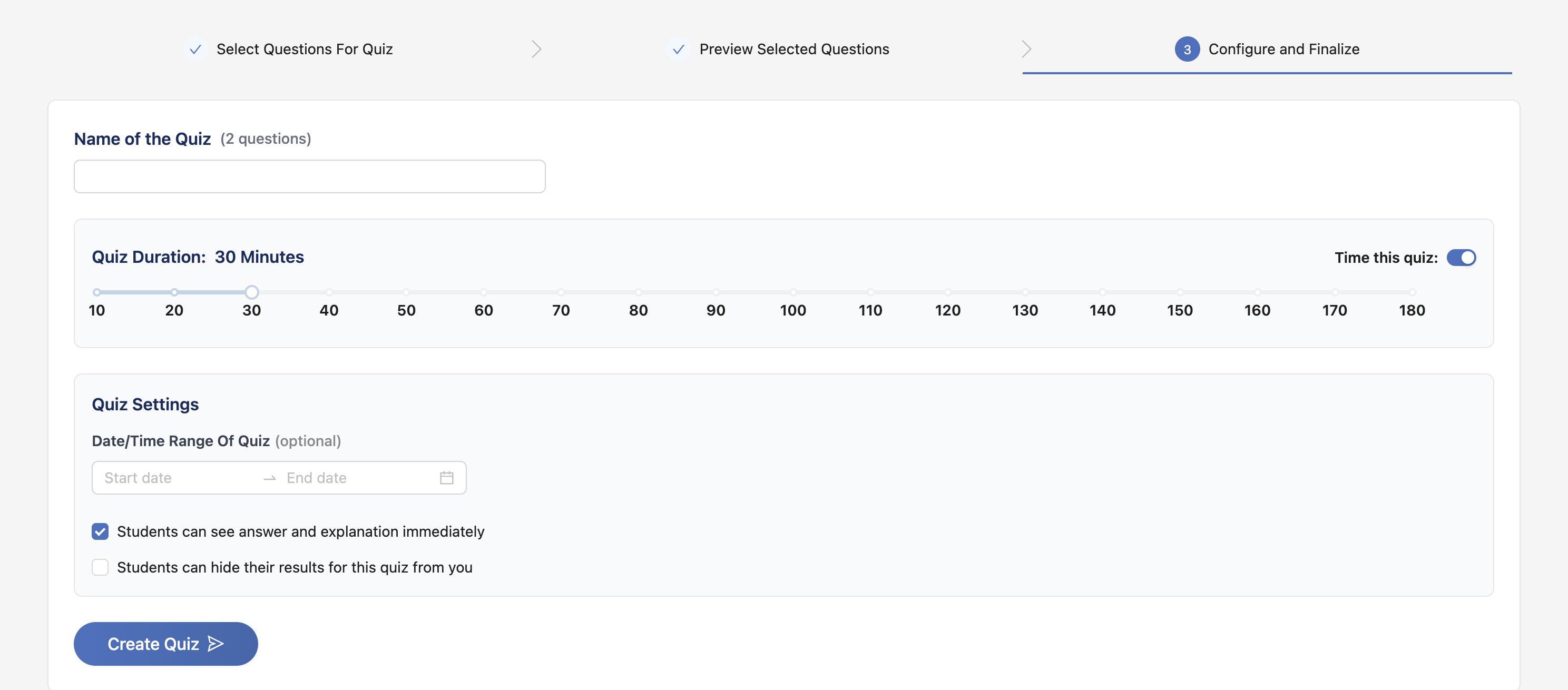
Configure and Create Quiz
Click "Configure and Finalize" (the third step at the top) to set your quiz options and create it.
- Enter a quiz name (e.g., "Unit 3 Test")
- Set the time limit using the slider (10-180 minutes)
- Optionally set start and end dates
- Click "Create Quiz"
Preview
Part 2: Assigning Your Quiz
Two Ways to Assign Quizzes
Shareable Link
Best for: Quick distribution, new students
Students need account? No (they'll create one)
Direct Assignment
Best for: Existing students, classes
Students need account? Yes
Method 1: Shareable Link (Quickest)
This is the easiest way to share a quiz with your students. They don't need a SudoStudy account yet - they'll create one when they click the link!
Steps:
- Go to My Quizzes in your subject dashboard
- Find the quiz you want to assign
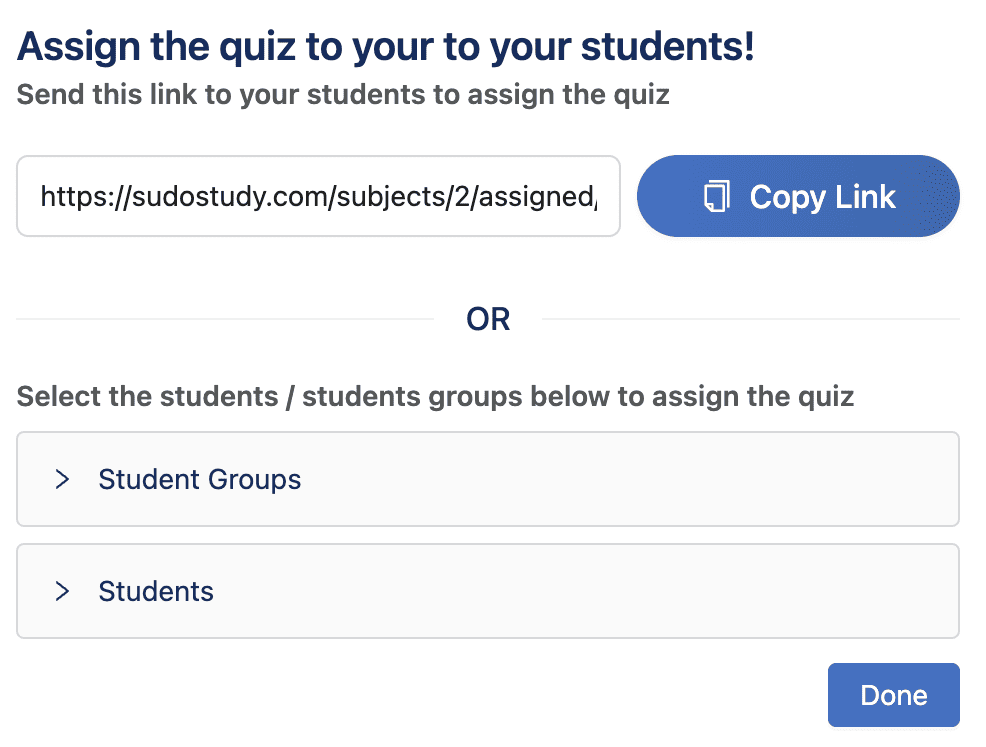
- Click the "Assign Quiz" button
- A window will appear with a link that is already copied for you
- Share this link with your students - you can send it by email, WhatsApp, Google Classroom, or just show it on the board in class
Preview
Method 2: Direct Assignment
Use this method when you want to assign the quiz to specific students or classes that are already in your school.
Assigning to Individual Students
- Go to My Quizzes in your subject dashboard
- Click "Assign Quiz" on your quiz
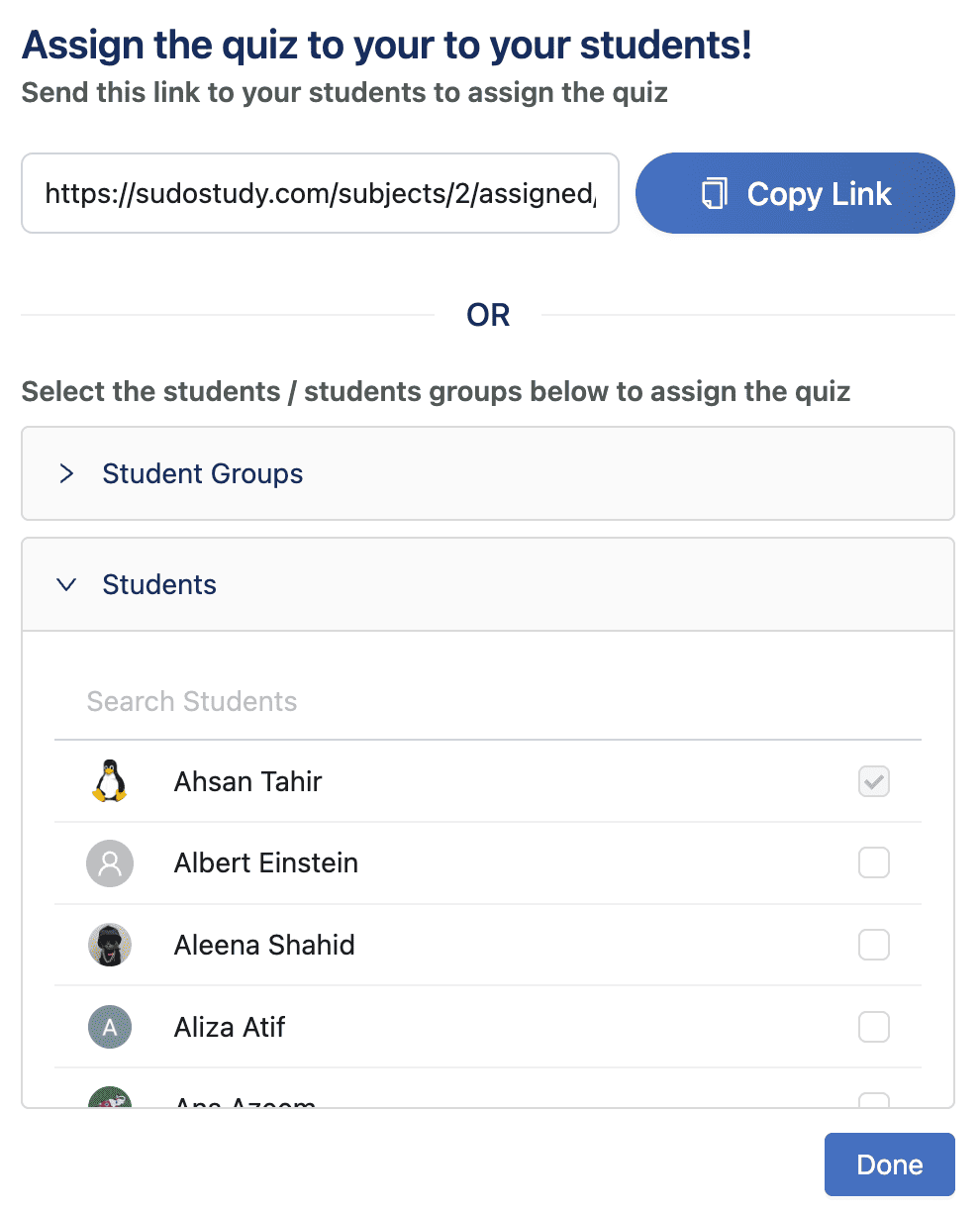
- In the window that appears, click the "Students" tab
- Use the search box to find the students you want
- Check the box next to each student you want to assign the quiz to
- Click "Save" or close the window
Preview
Assigning to Classes/Groups
- Click "Assign Quiz" on your quiz
- In the window that appears, click the "Student Groups" tab
- Check the box next to each class you want to assign the quiz to
- Click "Save"
Tips for Effective Distribution
For Homework
- Use shareable link
- Send via your usual channel
- Set a reasonable deadline
For In-Class
- Use direct assignment
- Display link on projector
- Consider Print & Scan
For Practice
- Share in class group chat
- Allow hiding attempts
- No deadline needed
Troubleshooting
Quiz Creation Issues
"Not enough questions available"
This happens when your selected topics don't have enough questions at your chosen difficulty. Try selecting more topics, using "Mixed" difficulty, or reducing the number of questions.
"Quiz creation failed"
Check your internet connection, refresh the page, and try again. Contact support if the problem persists.
Assignment Issues
"I can't find a student in the list" The student hasn't joined your school yet. Use the shareable link method instead - when they click the link, they'll automatically join your school.