
Back to Teacher Guide
Workshop 3 10 minutes
Student Reports & Downloads
See how your students are doing over time with detailed reports. You can download these reports and share them with parents so they know how their child is performing.
Accessing Student Reports
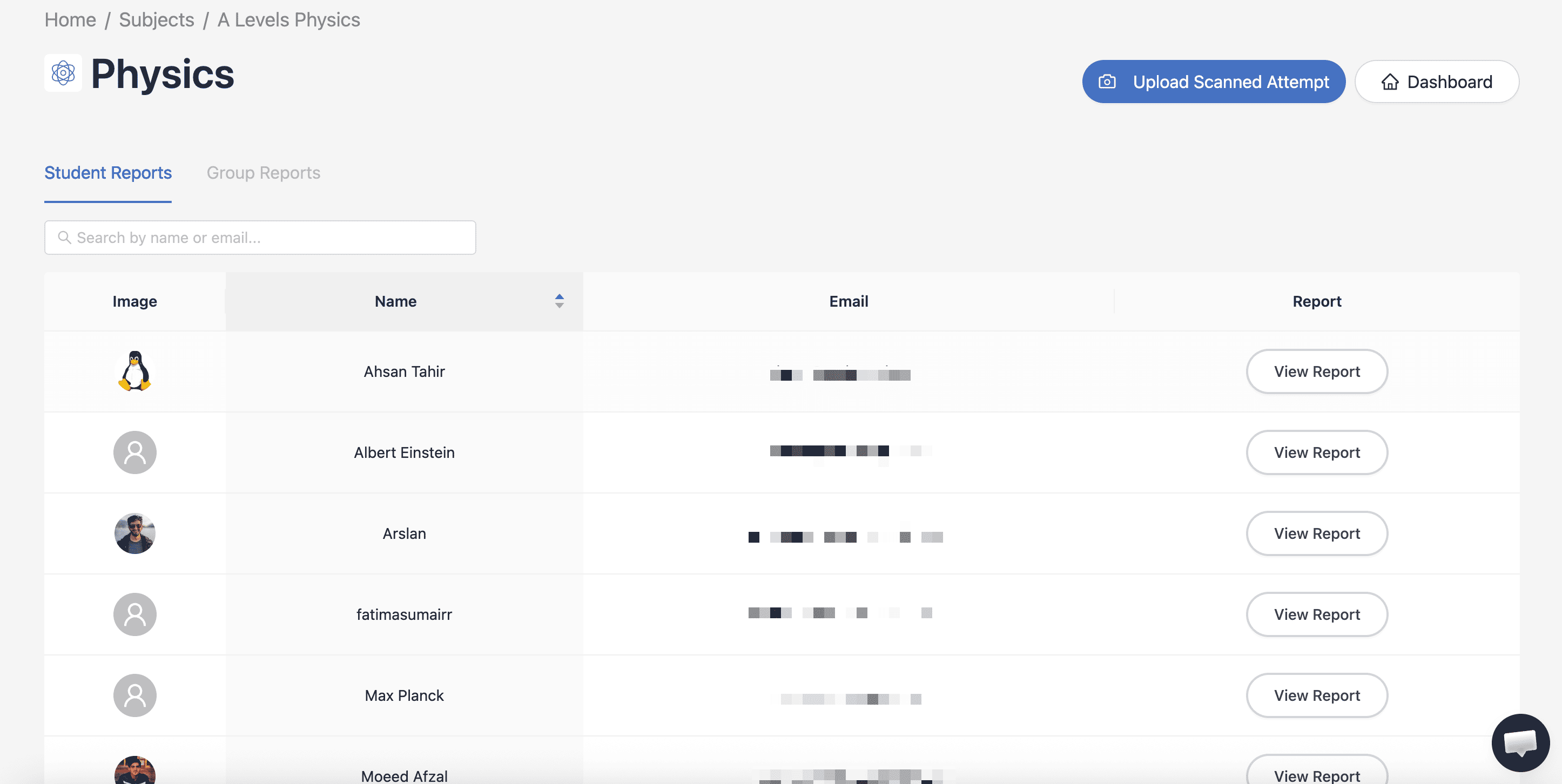
Go to the Student Reports section to see all students in your subject.
Steps:
- Go to your Subject Dashboard
- Click on "Student Reports" in the navigation
- You'll see a list of all students enrolled in your subject
- Click "View Report" next to any student
Preview
Understanding the Report
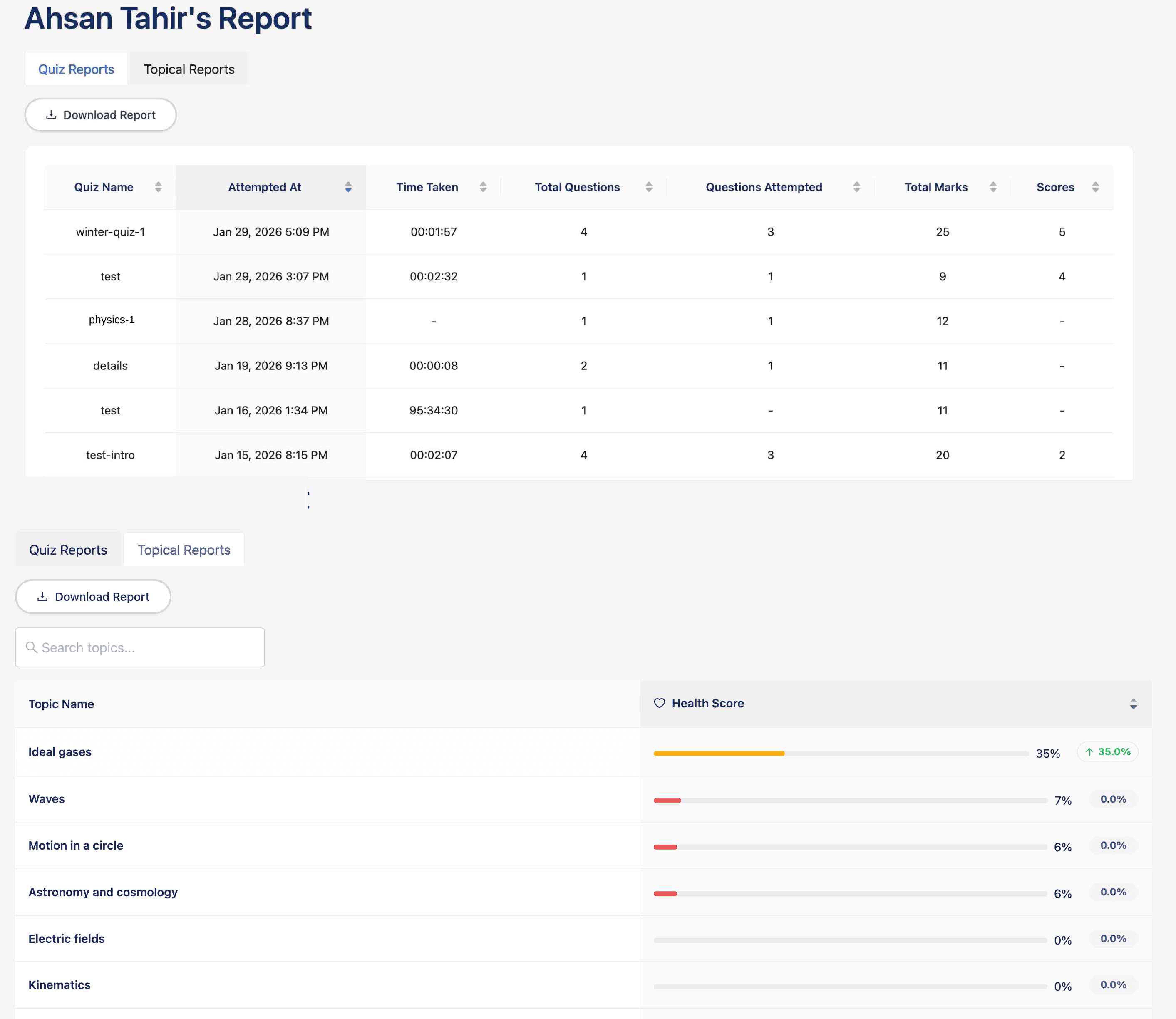
Each student report shows you lots of information about how they're doing.
Performance Summary
- Overall average score
- Total quizzes completed
- Total time spent studying
Quiz History
- All attempted quizzes
- Individual scores
- Completion dates
Topic Breakdown
- Performance by topic
- Strengths and weaknesses
- Areas needing improvement
Activity Timeline
- Recent activity
- Study patterns
- Engagement trends
Preview
Downloading Reports
You can download reports to share with parents or keep for your own records.
PDF Report
A PDF file that looks professional and is perfect for sharing with parents.
- Open a student's report
- Click "Download Report"
- Save the file to your computer or print it
What Parents See in Reports
The reports are designed to be easy for parents to understand and include:
📊
Clear Scores
Easy-to-understand percentage scores📈
Progress Trends
How their child is improving💡
Recommendations
Topics to focus on at homeTips for Using Reports Effectively
Schedule regular check-insCheck reports every week to spot students who might be struggling early on.
Share before parent meetingsSend reports to parents before parent-teacher meetings so they know how their child is doing.
Use topic breakdownsSee which topics the whole class is struggling with so you know what to focus on in lessons.